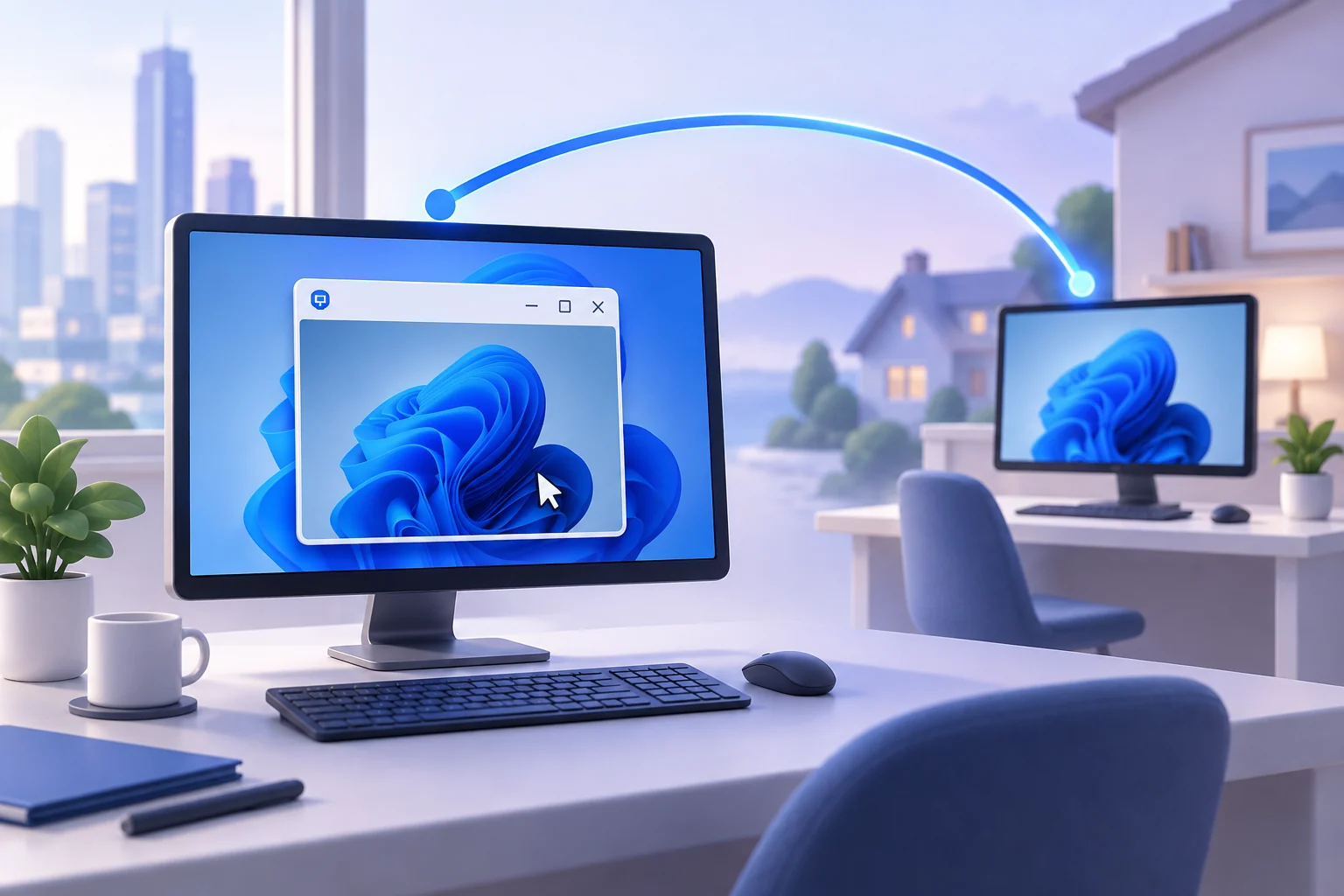
Opening Remote Desktop Connection on Windows
The beauty of the Windows remote desktop client is that it has been waiting for you all along. Click the Start button, type mstsc, and the Remote Desktop Connection program appears at the top of the search results — press Enter and the client window opens, asking only for a computer name. If you prefer menus, you can also find it under Windows Accessories, or launch it from the Run dialog with the same three-word command. Administrators often keep a shortcut pinned to the taskbar simply because launching mstsc is faster than finding any third-party program.
Before you reach for another computer, make sure that computer is ready to be reached. On the host, open Settings, go to System, and switch on Remote Desktop; Windows will confirm that the account you intend to use has permission to connect. Note the computer's full name or its IP address — you will enter it into the client as the destination. This one-time preparation on the host is the only real setup the entire arrangement requires.
Making Your First Connection
In the Remote Desktop Connection window, type the name or IP address of the host into the Computer field and click Connect. Windows will ask for your credentials — enter the username and password of an account on the remote machine, and if a certificate warning appears on first contact, read it carefully: on your own machines within your own network it is expected, but never accept one blindly on a public network. Within seconds the distant desktop fills your screen.
The first session can feel almost uncanny: your mouse moves a cursor on another continent, your keyboard types into a program installed thousands of miles away, and yet the delay is often so small that it is easy to forget which machine you are actually sitting at. That is the whole point. Whether you are reaching an office workstation or a home PC, Remote Desktop Connection turns two machines into one seamless working environment.
Working Comfortably Inside a Session
A session is meant to feel like the real thing, and a few settings help it get there. Full-screen mode gives you the entire remote desktop with a connection bar tucked at the top for minimizing or ending the session; the display tab of the client lets you tune resolution and color depth if the link is slow. Multi-monitor users can tell the client to span every local display, which restores the exact screen arrangement of the desk they left behind.
Resource redirection is where sessions start to feel magical. By default your clipboard follows you into the remote desktop, so a link copied locally pastes remotely without ceremony. In the Local Resources tab you can also map your local printers, plug in your local drives as network shares inside the session, and even route the host's audio to your own speakers. Once configured, these options are saved with the connection so you never see them again.
Reaching a PC Over the Internet
Inside one office network, connecting is trivial — the computers can already see each other. Across the internet, the session needs a safe path. The gold-standard approach is a VPN that joins you to the host's network first, after which the client connects exactly as it would on a LAN. Businesses often deploy RD Gateway, which wraps the session in HTTPS and lets it pass through a single firewall port without exposing the host directly.
What you should avoid is forwarding port 3389 straight through a home router to the open internet. Automated scanners constantly probe for exposed RDP endpoints and hammer them with password guessing. A VPN tunnel or a gateway adds a locked front door in front of the protocol, which is precisely the difference between remote access and remote risk. If you take one lesson from this guide, let it be this one.
Troubleshooting the Usual Suspects
Most first-time failures have short lists of causes. If the client reports that the computer cannot be found, the name is misspelled or the host's firewall is refusing the connection. If credentials are rejected despite being correct, the account may lack permission for remote sessions, or Caps Lock betrayed you. If a session connects but feels sluggish, lower the resolution and color depth, disable desktop wallpaper in the Experience tab, and remember that both endpoints of the link matter, not just the office end.
When the host itself is asleep or hibernating, no connection is possible, so configure the machine to stay awake or wake on network traffic. And if you ever want a refresher on the fundamentals beyond this walkthrough, the overview on our Remote Desktop Connection homepage covers the client's core features in plain language.
Final Thoughts
The whole workflow — enable Remote Desktop on the host, note its name, connect with mstsc, tune a few options — takes less time than installing almost any modern application. Because the tool ships with Windows, there is nothing to buy and nothing to update separately, and every skill you practice transfers directly to servers, cloud desktops, and any future Windows release. Once your first session ends and you realize you never even stood up, you will wonder how you ever worked without it.